



Event Lighting
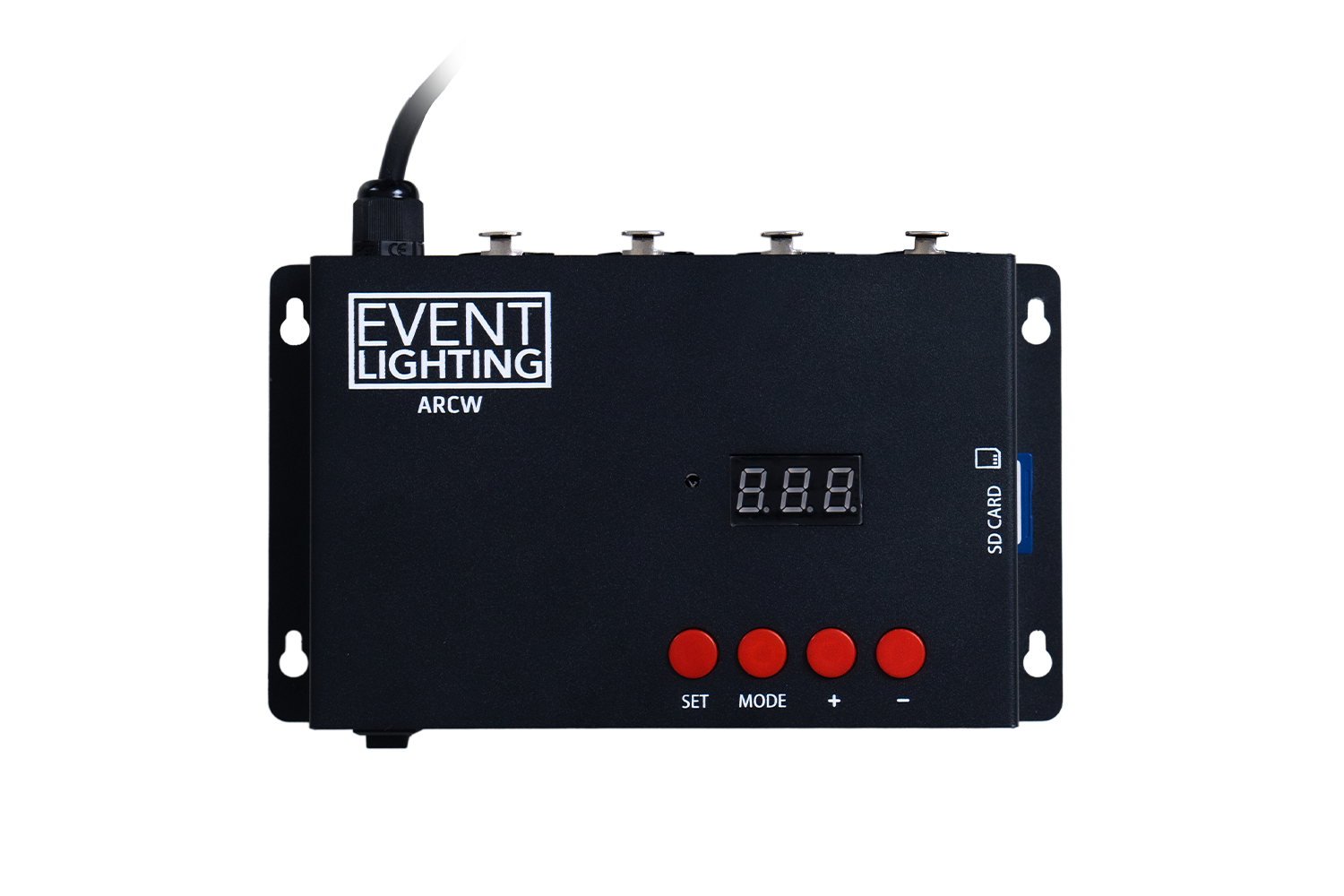
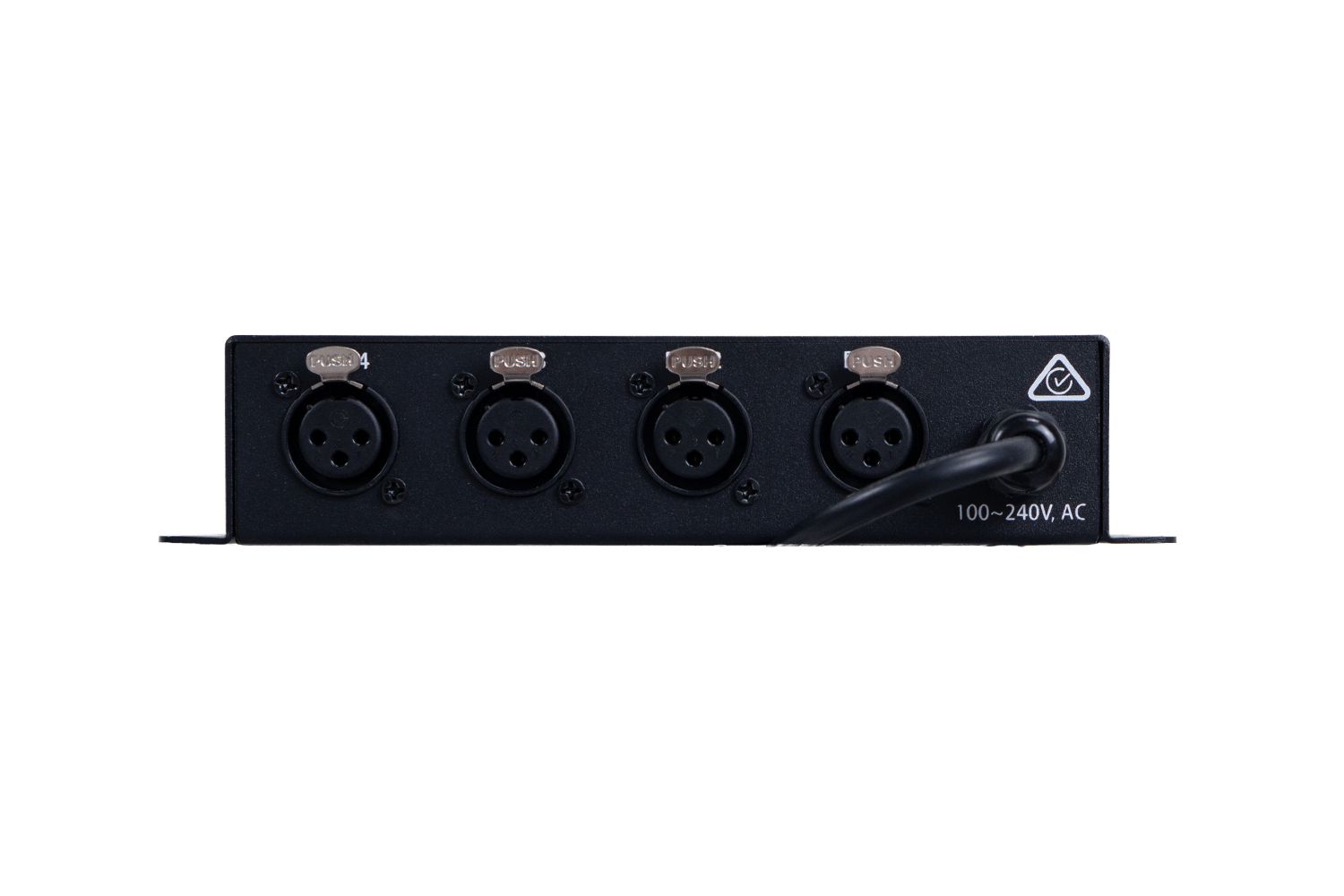
ARCW - Programmer and Controller
- 4 output universes.
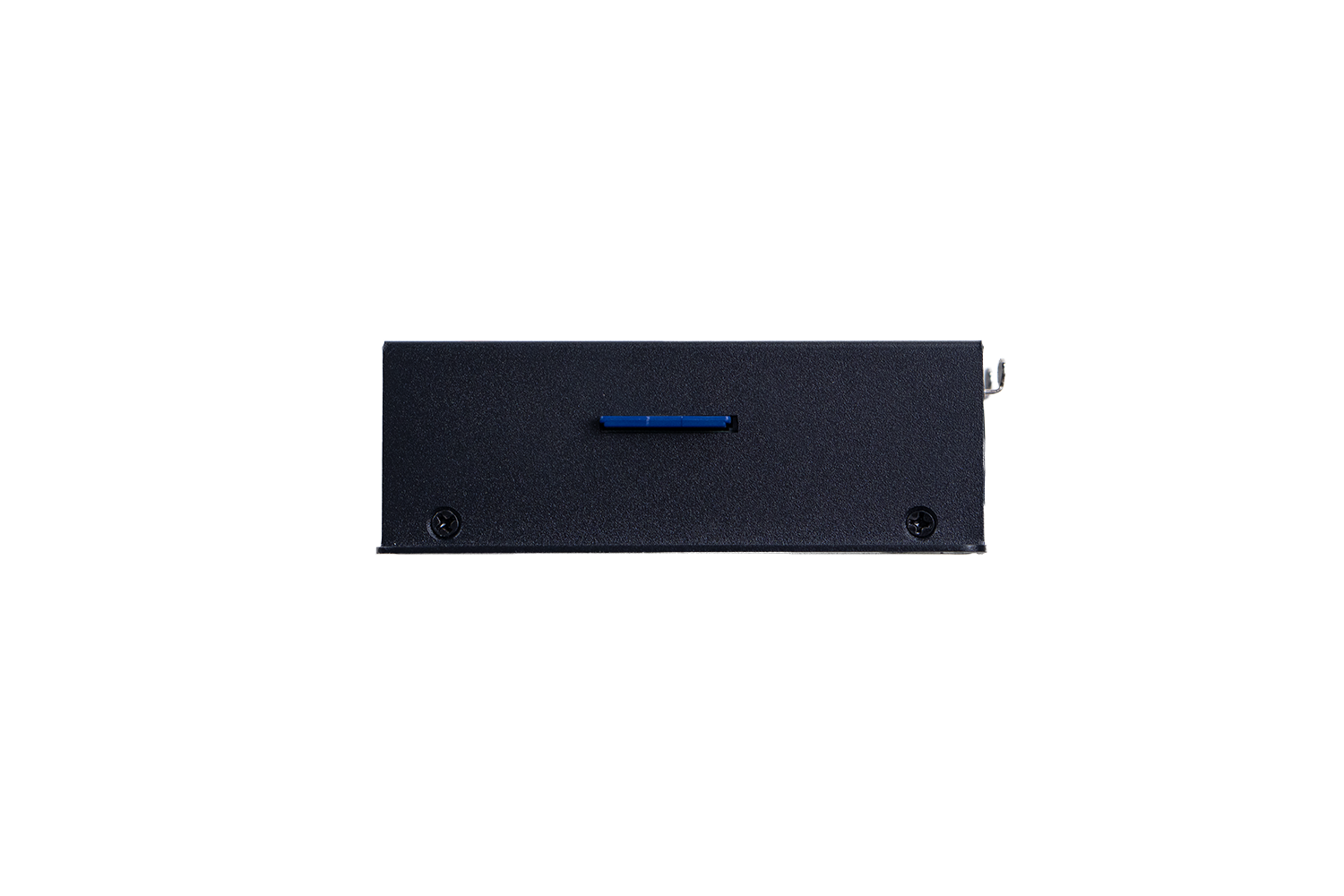
- SD card for pre-programmed shows.
IP2DMX cables are required to control PIXBALLS2 or IP Bars and Spots using DMX.
To update the firmware on the ARCW, follow the below steps:
- Download updated firmware from Event Lighting website (use link below)
- Connect the SD card from the ARCW to a computer and delete the files on the original SD card.
- Copy the Firmware file to the SD Card and eject the device from computer.
- Insert the SD card into ARCW.
- Press and hold the "mode" button key a 5 seconds.
- Once you have done this, the new Firmware will be installed onto the ARCW.
Software not talking to your ARCW? Check these four settings.

Most "the software doesn't work" problems come down to the settings below. Set these in LED Build (EasySculpt) and you should be up and running in under a minute.
1. Pick the controller type (in the left-hand panel)
Set the drop-down under Connection mode to: Four line with a slave
2. Open Controller Setting and set:
- LightType: RGB-W
- IC Type: DMX512, UCS512, TM512, SM16512, MY9941
- Control signals: Differential
3. Click Apply.
That's it. Leave everything else at the default settings, including Bright, Gamma and ClockRate.
Still stuck? Call the Eventec team on 02 9897 3077 or email sales@eventec.com.au. We'd rather hear from you than have your ARCW sitting in a road case.
ARCW Codes and Applications Information
Warranty: 3 years

Come visit our Showrooms!
Find a time to visit our showroom and have one of our staff walk you through our products and answer any questions you might have.